Get Started
Requirements
- URP or HDRP is the active render pipeline.
- The character has a SkinnedMeshRenderer and an Animator, or an Animator Controller you can assign.
- Optimize Game Objects is off on the model import settings, Rig tab, so the bake can sample the bones.
Installation
- In Unity, open Window → Package Manager and install the Vertex Animator package.
- If the project uses HDRP, import Vertex Animator HDRP after the main package is installed: double-click
Vertex Animator HDRP.unitypackagein theAssets\NOT_Lonely\Vertex Animatorfolder and import it.
Bake animations
- Open Tools → NOT_Lonely → Vertex Animator → Vertex Animator Baker.
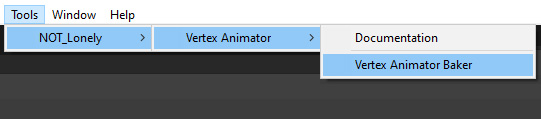
- Assign Source: a project prefab with a SkinnedMeshRenderer. The Animator Controller fills in from Source when it can.

- Set Character Name, Sample Rate, and Shared Material (Create one with the
VAT Shader Graph Sampleshader).

- Leave Fill Controller, Create VAT Prefab, and Bake Vertex Normals on.

- Click the Bake button at the bottom of the window and choose an output folder.
Now you can use the generated {Source}_VAT from the output folder in your scene.
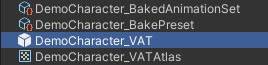
The locomotion animations will be played automatically if you add a NavMeshAgent and your movement script on this object.
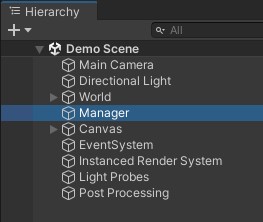
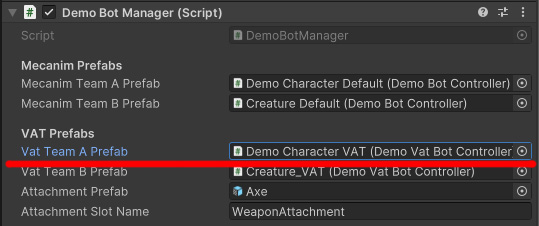
More details about the baking options see on the Baking page.
Set up a player (manual)
Skip this when Create VAT Prefab already made {Source}_VAT.
- Create a GameObject with a MeshFilter and MeshRenderer using the same mesh that was baked.
- Add Vertex Anim Player and assign the Vertex Anim Controller.
- Assign Mesh Renderer and Mesh Filter if they stayed empty.
- Add Vertex Anim Locomotion Driver when movement should drive Idle and the four directions.
Drive non-locomotion clips from code (optional)
Idle and walk already come from the locomotion driver. Use a trigger for attacks, hits, death, and other OneShot or Loop states. Fill Controller names each trigger after the state.
C#
using NOT_Lonely.VertexAnimator.Runtime;
using UnityEngine;

public class SimpleVatDemo : MonoBehaviour
{
    static readonly int AttackHash = VertexAnimPlayer.StringToHash("Attack");

    [SerializeField] VertexAnimPlayer player;

    void Update()
    {
        if (Input.GetKeyDown(KeyCode.Space))
            player.SetTrigger(AttackHash); // or player.SetTrigger("Attack")
    }
}
Playback API: Runtime. Who calls Tick: Manual Update. Crowds: Instanced Rendering.