Runtime
VertexAnimPlayer
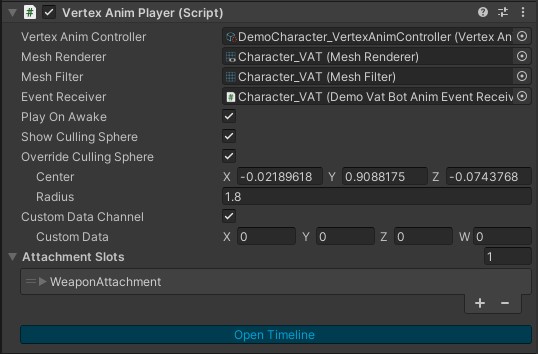
Central playback component. Assign a Vertex Anim Controller (which references a Baked Animation Set).
Common API
| Method / property | Purpose |
|---|---|
StringToHash(name) |
Stable int id (Animator.StringToHash); cache for hot paths |
SetTrigger(name) / SetTrigger(id) |
Fire a trigger parameter (drives transitions) |
SetLocomotion(...) |
Feed directional blend / speed for locomotion states |
PlayDefaultOrFirstClip() |
Start default / first available clip |
Paused |
Freeze playhead without disabling the component |
Tick(deltaTime) |
Advance one frame of simulation (required when Manual Update is on) |
CurrentClipA / CurrentFrameA / … |
Read current playback state |
IsPlayingOneShot / IsPlayingLoop |
Query override modes |
CustomData |
Optional packed per-instance bytes for the shader |
Play from code
Trigger names must match controller parameters (Fill Controller creates them from OneShot / Loop state names). String overloads still work; prefer cached hashes when many characters fire triggers every frame.
using NOT_Lonely.VertexAnimator.Runtime;
using UnityEngine;

public class EnemyAnimBridge : MonoBehaviour
{
    static readonly int AttackHash = VertexAnimPlayer.StringToHash("Attack");
    static readonly int DeathHash = VertexAnimPlayer.StringToHash("Death");

    [SerializeField] VertexAnimPlayer player;

    public void PlayAttack() => player.SetTrigger(AttackHash);

    public void PlayDeath() => player.SetTrigger(DeathHash);

    void Update()
    {
        if (player.IsPlayingOneShot)
            return; // wait out the override before issuing another one-shot
    }
}
VertexAnimPlayer.StringToHash uses the same algorithm as Animator.StringToHash. For a one-off call, player.SetTrigger("Attack") is enough.
Swap the controller at runtime (for example after pooling a different archetype):
player.SetController(nextController);
player.PlayDefaultOrFirstClip();
Play on Awake
When enabled, the player starts default playback when the component wakes (subject to controller / clips being available).
Culling sphere
Used by InstancedRenderSystem frustum culling. You can override center/radius or apply bounds from the mesh via the inspector.
Attachments
Bake stores per-frame poses for named slots. At runtime the player draws attachment meshes through InstancedRenderSystem (same gather/draw path as the body, batched by mesh + material). Slot names must match the transform names used at bake time.
Prefab setup. On the player’s attachment slot list, assign a target that has a MeshRenderer on itself or a child. On Play Mode enable the player:
- Reads mesh, material, shadows, layer, and uniform scale from that renderer (
localScale.x— non-uniform scale is not supported). - Registers an instanced draw for the slot.
- Disables the whole
targetGameObject so the MeshRenderer path is not used.
Runtime swap.
using NOT_Lonely.VertexAnimator.Runtime;
using UnityEngine;

// scale = uniform factor in player-root local space (1 = authored size if you baked at scale 1)
player.SetAttachment("Sword Slot", swordMesh, swordMaterial, scale: 1f);
player.ClearAttachment("Sword Slot");SetAttachment/ClearAttachmentlive only onVertexAnimPlayer.- Changing mesh/material unregisters and re-registers that instance; the hot path only writes the instance matrix from the baked track (and blend).
- Prefer
Prewarmon known attachment mesh/material pairs if many characters share the same prop.
Empty mounts (target without a mesh, kept active) can still receive world pose writes for parenting VFX; slots with an instanced mesh do not move hierarchy transforms.
Custom Data
Enable Custom Data Channel on the player, then write a packed uint from code. Index 0 is the first value passed to Pack / WithChannel, then 1, 2, and 3. How to read those channels in a shader is under Materials and shaders.
using NOT_Lonely.VertexAnimator.Runtime;

// Pack four 0..1 bytes into one uint
player.CustomData = InstanceCustomDataChannel.Pack(deathBlend, tint, 0f, 0f);

// Or mutate one channel without wiping the others
player.CustomData = InstanceCustomDataChannel.WithChannel(
    player.CustomData,
    channel: 0,
    value01: deathBlend);
VertexAnimLocomotionDriver
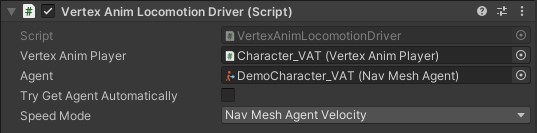
Requires a VertexAnimPlayer on the same object.
- Reads velocity from a NavMeshAgent or from transform deltas (Calculate mode).
- Applies Idle vs directional locomotion through the player.
- If a direction has no clip, that slot uses the Forward clip (when Forward itself exists).
- Optional intent blend for AI that wants to drive facing/motion axes without raw velocity.
Call VertexAnimLocomotionDriver.Tick() each frame when Manual Update is enabled (typically before VertexAnimPlayer.Tick).
Prefer the driver for movement. Call SetLocomotion yourself only when you resolve clips and blend weights from your own AI:
// clipA / clipB are BakedAnimationClipData from the Baked Animation Set
player.SetLocomotion(
    clipA: forwardClip,
    clipB: strafeClip,
    blend: 0.35f,
    motionScaleA: speed / forwardClip.referenceMoveSpeed,
    motionScaleB: speed / strafeClip.referenceMoveSpeed);
VAT LOD Group
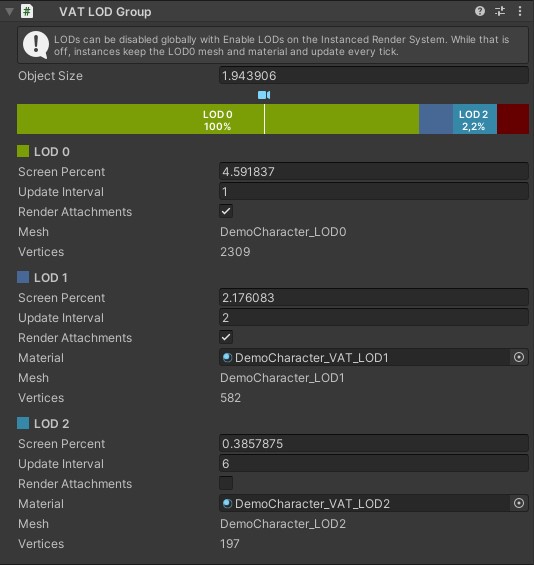
Add VAT LOD Group on the same object as VertexAnimPlayer. New VAT prefabs from Create VAT Prefab already have it. The component reads LOD data from the Baked Animation Set; it does not store its own copy.
Screen height uses Object Size (like Unity’s LOD Group size), the instance scale, distance, and camera FOV. Screen Percent on each band is the end of that band (Unity’s Transition % Screen Size). LOD0’s bar label starts at 100%. Below the last percentage the character is occluded: the body and its attachments are not drawn.
Drag the dividers on the bar, or type Screen Percent. Drag the camera icon above the bar to frame the Scene view.
| Field | Meaning |
|---|---|
| Object Size | Local size used in the screen-height test. A Scene view square shows it |
| Screen Percent | Where this LOD ends and the next begins |
| Update Interval | How many Tick calls pass between VAT pose updates. Minimum and default are 1 (every call). Time is accumulated, so playback does not slow down — the pose, events, and attachment sampling just run less often |
| Render Attachments | On by default. Off draws that LOD’s body without attachment slots |
| Material | Extra LODs only. Empty uses the set’s shared material |
A small return band keeps the LOD from flickering on the boundary.
Update Interval applies to automatic Update and to manual Tick. Instanced drawing does not use it: matrices, culling, and RenderMeshInstanced still run every frame.
While occluded, time still accumulates, but animation events from that hidden stretch are dropped.
Enable LODs on Instanced Render System (on by default) turns distance LOD off for every instance. Characters then stay on the LOD0 mesh and material, update every tick, and keep drawing attachments.
VertexAnimEventReceiver
Separate component that dispatches baked animation events. Subclass it, override RegisterHandlers, and assign the instance on the player’s Event Receiver field (same GameObject is typical).
Event times are in source clip time, not wall-clock when playback speed ≠ 1. Handler names must match the functionName on the baked events.
using NOT_Lonely.VertexAnimator.Runtime;
using UnityEngine;

public class EnemyHitEvents : VertexAnimEventReceiver
{
    protected override void RegisterHandlers(VertexAnimEventHandlerRegistry registry)
    {
        registry.RegisterVoid("OnAttackHit", OnAttackHit);
        registry.RegisterFloat("OnFootstep", volume => Debug.Log($"step {volume}"));
        registry.RegisterInt("OnPhase", phase => Debug.Log($"phase {phase}"));
    }

    void OnAttackHit()
    {
        // apply damage / spawn VFX
    }
}
Available registrars: RegisterVoid, RegisterFloat, RegisterInt, RegisterString, RegisterObject, RegisterAudioClip.
Materials and shaders
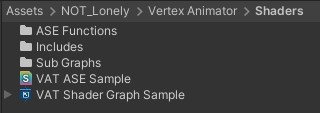
The shared material must use the package VAT shader path that samples the atlas and instance packed buffers. After bake, atlas references are applied to the Shared Material you assigned. Enable instancing on the material when using InstancedRenderSystem.
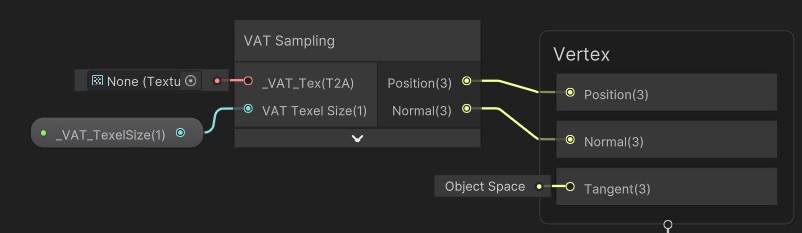
VAT Sampling (core)
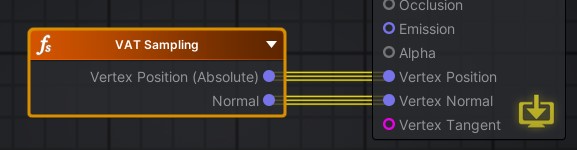
The VAT Sampling node is a core of the shader. The package includes this node for both Amplify Shader Editor and Shader Graph. Use it in your custom shaders to make them support the Vertex Animator.
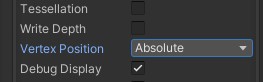
Plug-in the node outputs into the Vertex Position and Vertex Normal on the master node.
Custom data
Custom Data Channel on the player enables the _NL_CUSTOM_DATA_ON keyword on the shared material. The material checkbox follows that toggle.
The shader reads all four bytes as a 0–1 vector, or one byte when you only need a single channel. Index 0 is the first value passed to Pack / WithChannel, then 1, 2, and 3. Set the packed value from code on VertexAnimPlayer.
Amplify Shader Editor
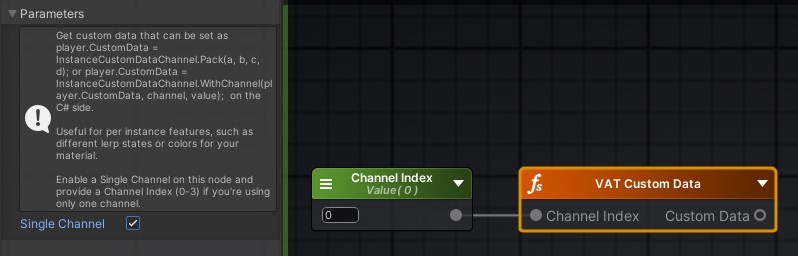
Add the shader function VAT Custom Data to your Amplify shader:
Assets/NOT_Lonely/Vertex Animator/Shaders/ASE Functions/VAT Custom Data.asset
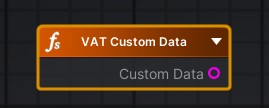
Custom Data is all four channels as a Vector4. Enable Single Channel on the node and set Channel Index to 0–3 when you only need one channel.
Shader Graph
Two subgraphs match those modes. Either one brings the _NL_CUSTOM_DATA_ON keyword onto the parent shader.
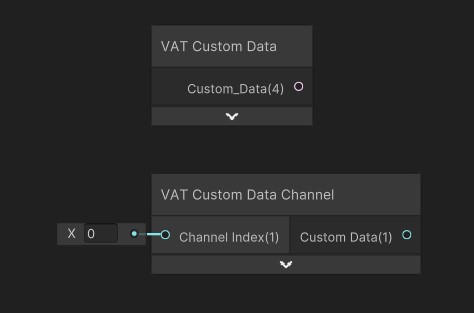
VAT Custom Data returns the full Vector4 on Custom_Data:
Assets/NOT_Lonely/Vertex Animator/Shaders/Sub Graphs/VAT Custom Data.shadersubgraph
VAT Custom Data Channel returns one channel. Connect Channel Index (0–3) and use the Custom Data output:
Assets/NOT_Lonely/Vertex Animator/Shaders/Sub Graphs/VAT Custom Data Channel.shadersubgraph
Prefabs and pooling
Players register/unregister with the instanced system on enable/disable. When pooling visuals, clear locomotion / trigger state when reusing an instance so the previous occupant does not leak into the next.
player.Paused = false;
player.CustomData = 0;
player.SetController(archetypeController); // or keep the same controller
player.PlayDefaultOrFirstClip();
if (!string.IsNullOrEmpty(spawnTrigger))
    player.SetTrigger(VertexAnimPlayer.StringToHash(spawnTrigger));