Timeline
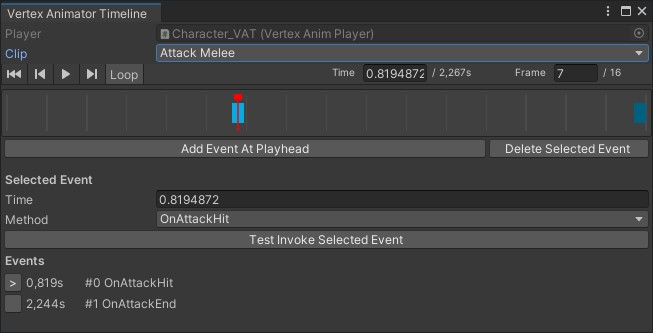
Editor window for scrubbing baked clips on a live VertexAnimPlayer, previewing poses in the Scene view, and authoring animation events on BakedAnimationClipData.
Open the window
- Select a GameObject with a
VertexAnimPlayer(and aBakedAnimationSetassigned). - In the Vertex Anim Player inspector, click the Open Timeline button.
Target
| Control | Meaning |
|---|---|
| Player | Read-only field showing the current VertexAnimPlayer |
| Clip | Popup of all clips in the VertexAnimPlayer’s BakedAnimationSet (by stateName) |
Events
Events are stored on the selected *_ClipData asset (BakedAnimationClipData.events). Rebaking keeps them — see Baked Assets.
Requirements for handlers
For a proper Method popup and Test Invoke, the VertexAnimPlayer object needs a VertexAnimEventReceiver (subclass that registers handlers, or the examples component). Assign it on the VertexAnimPlayer’s Event Receiver field, or leave it on the same GameObject.
Without a receiver, the window warns you and falls back to raw Function / parameter fields.
Add Event At Playhead
Creates an event at the current playhead (converted to source time):
- If handlers exist on the receiver, the new event defaults to the first registered method
- Events are sorted by source time after add
- The new event becomes selected
Selected Event inspector
Shown when an event is selected (marker click or list row):
| Field | Meaning |
|---|---|
| Time | Wall-clock seconds (converted to/from stored source time) |
| Method | Popup of handlers from the receiver (sets handlerIndex + functionName) |
| Parameter fields | Only the kind the handler expects: float / int / string / object |
| Function (+ all params) | Fallback when no handlers are registered |
| Test Invoke Selected Event | Calls receiver.TryInvoke on the selected event (disabled if no receiver / no method) |
Changing time or method saves the ClipData immediately. Undo/redo refreshes selection and preview.
Events list
Scrollable list of all events on the clip:
>marks the selected row- Click the marker column to select and scrub to that event
- Drag a marker along the timeline to change its time (the clip is sorted and saved when you release)
- Shows wall-clock time and method label
Workflow tips
- Bake first so ClipData assets exist — see Baking.
- Use the VAT prefab, or any object whose VertexAnimPlayer already has a controller.
- Open Timeline from the
VertexAnimPlayerinspector. - Scrub / play to check motion; use Frame step for precision.
- Add events at the playhead, bind Method, Test Invoke, then rely on the same events at runtime via
VertexAnimEventReceiver.
Next: Runtime → Events for how those events fire in Play Mode.